Managing your Globe, TM, or GFiber account has never been easier thanks to the GlobeOne App, the official self-service mobile application developed by Globe Telecom. Instead of visiting a physical store or dialing multiple service codes, you can manage almost every aspect of your account from your smartphone.
With the GlobeOne App, you can check your prepaid load, monitor your remaining data balance, buy the latest promos, pay postpaid bills, redeem Globe Rewards points, manage multiple Globe and TM numbers, and even monitor your GFiber account—all in one secure app.
Whether you’re a new Globe customer or a long-time subscriber, GlobeOne simplifies account management by providing real-time information and convenient digital services. The app is available for both Android and iPhone users and is free to download from the official app stores.
This complete guide explains everything you need to know about the GlobeOne App, including its features, supported services, how to download it, create an account, and make the most of its tools.
Looking for more Philippine government guides? Visit RegisterInfoPH for the latest registration updates and step-by-step tutorials.
GlobeOne App at a Glance
| Feature | Details |
|---|---|
| Application Name | GlobeOne App |
| Developer | Globe Telecom |
| Price | Free |
| Platform | Android & iOS |
| Supports | Globe Prepaid, Globe Postpaid, TM, GFiber |
| Main Purpose | Manage Globe services digitally |
| Login Method | Mobile Number or Email |
| Internet Required | Yes |
| Official Provider | Globe Telecom |
Explore our latest guides and updates on Philippine government services.
What Is the GlobeOne App?
The GlobeOne App is the official mobile application of Globe Telecom designed to give customers complete control over their Globe accounts from anywhere. Instead of using multiple websites or customer service channels, users can access most Globe services directly within a single application.
The app combines account management, billing, rewards, promos, and customer support into one easy-to-use platform. Whether you use a prepaid SIM, postpaid plan, TM SIM, or GFiber connection, GlobeOne provides a centralized dashboard where you can monitor your account and complete everyday transactions.
As Globe continues expanding its digital services, GlobeOne has become the primary platform for customers who want a faster, safer, and more convenient way to manage their mobile and internet services.
Read also : Globe SIM Registration 2026: Complete Online Registration Guide
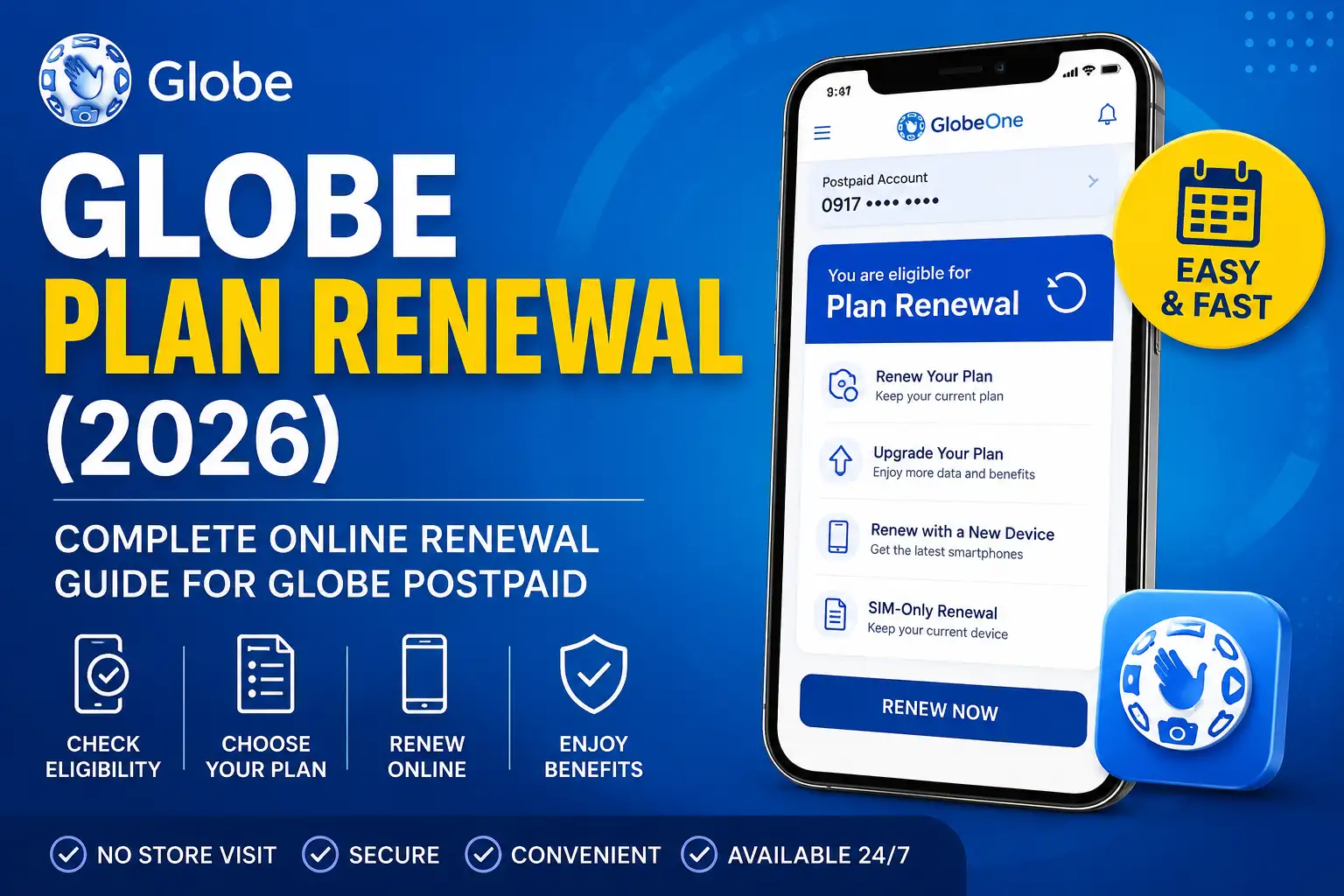
Globe Plan Renewal (2026): Complete Online Renewal Guide for Globe Postpaid
Why Use the GlobeOne App?
The GlobeOne App saves time by allowing customers to perform common account tasks without visiting a Globe Store or contacting customer support.
Some of the biggest advantages include:
- Manage your account anytime
- View your remaining data and load instantly
- Buy promos without dialing codes
- Pay bills securely online
- Redeem Globe Rewards points
- Add and manage multiple Globe accounts
- Track your transactions
- Receive exclusive app-only offers
- Monitor your GFiber account
- Access customer support when needed
Because everything is available inside one application, users can quickly complete everyday tasks with just a few taps.
Download the Official GlobeOne App
To protect your personal information and account, always download GlobeOne from Globe Telecom’s official channels.
The app is available for both Android and iPhone users and can be installed free of charge.
How to Download the GlobeOne App
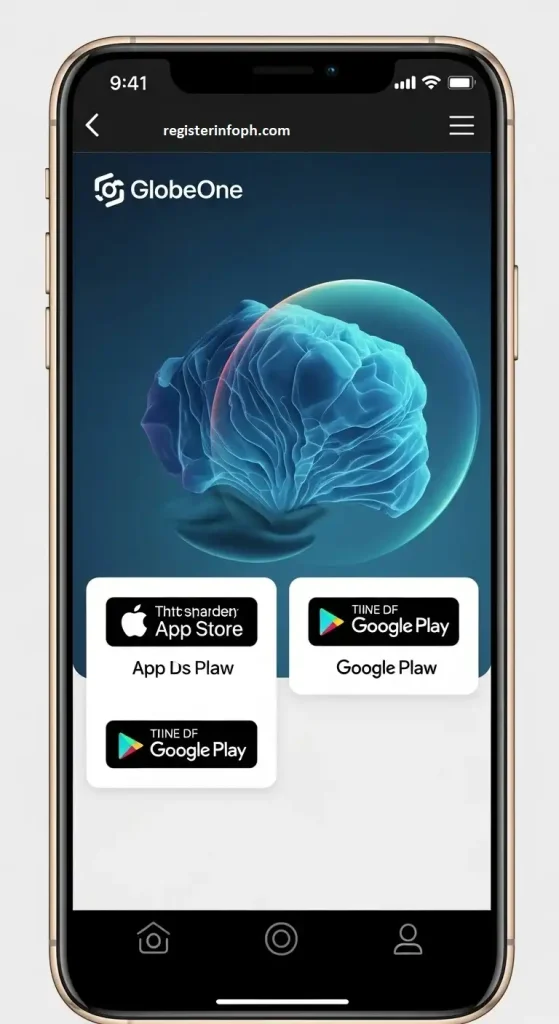
Downloading the GlobeOne App only takes a few minutes. To protect your personal information and Globe account, always install the app from the official Google Play Store or Apple App Store. Avoid downloading APK files or modified versions from third-party websites, as these may not be secure or up to date.
The app is free to download and receives regular updates that include new features, security improvements, and bug fixes.
Download GlobeOne on Android
If you’re using an Android smartphone or tablet, follow these steps:
- Open the Google Play Store on your device.
- Search for GlobeOne.
- Confirm that the developer is Globe Telecom.
- Tap Install.
- Wait for the download and installation to finish.
- Open the app and continue with the account setup.
Tip: Enable automatic app updates in the Google Play Store to ensure you’re always using the latest version.
Download GlobeOne on iPhone
iPhone and iPad users can install GlobeOne through the Apple App Store.
Follow these steps:
- Open the App Store.
- Search for GlobeOne.
- Verify that the publisher is Globe Telecom.
- Tap Get.
- Authenticate with Face ID, Touch ID, or your Apple ID password if prompted.
- Open the app after installation.
Why You Should Download Only the Official App
Downloading GlobeOne from official app stores provides several benefits:
- Access to the latest features
- Improved account security
- Regular bug fixes
- Better app performance
- Official customer support compatibility
- Protection from fake or modified apps
If you experience installation issues, ensure your device has enough storage space and is running a supported operating system.
How to Register for the GlobeOne App
Before you can access GlobeOne’s features, you’ll need to create an account. Registration is straightforward and only requires a few details.
Step 1: Open the GlobeOne App
Launch the app after installation.
You’ll be welcomed with the sign-in and registration screen.
Step 2: Choose to Create an Account
If you’re a new user, select the option to create a new GlobeOne account.
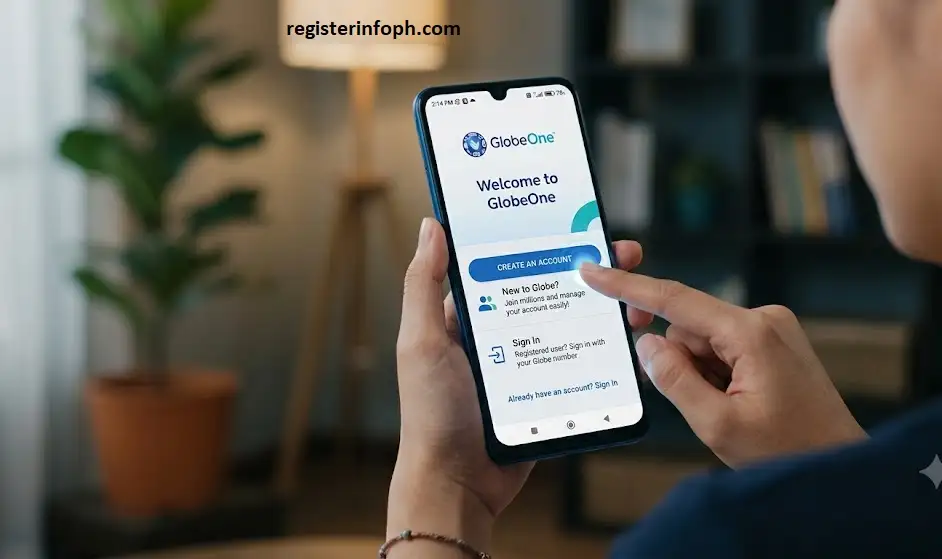
Existing users can simply sign in with their registered credentials.
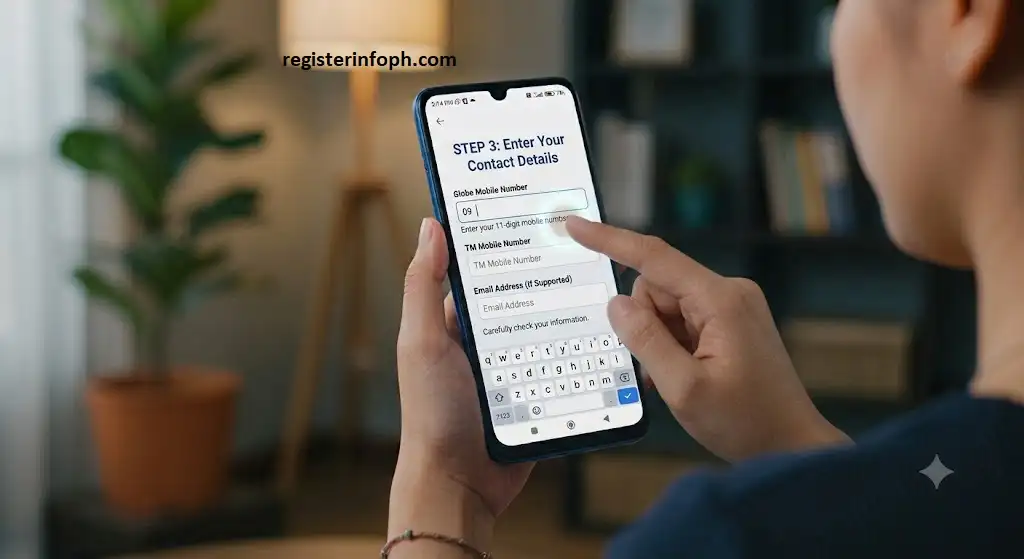
Step 3: Enter Your Mobile Number or Email
Depending on the available registration options, you’ll be asked to provide your:
- Globe mobile number
- TM mobile number
- or email address (if supported)
Carefully check that the information you enter is correct.
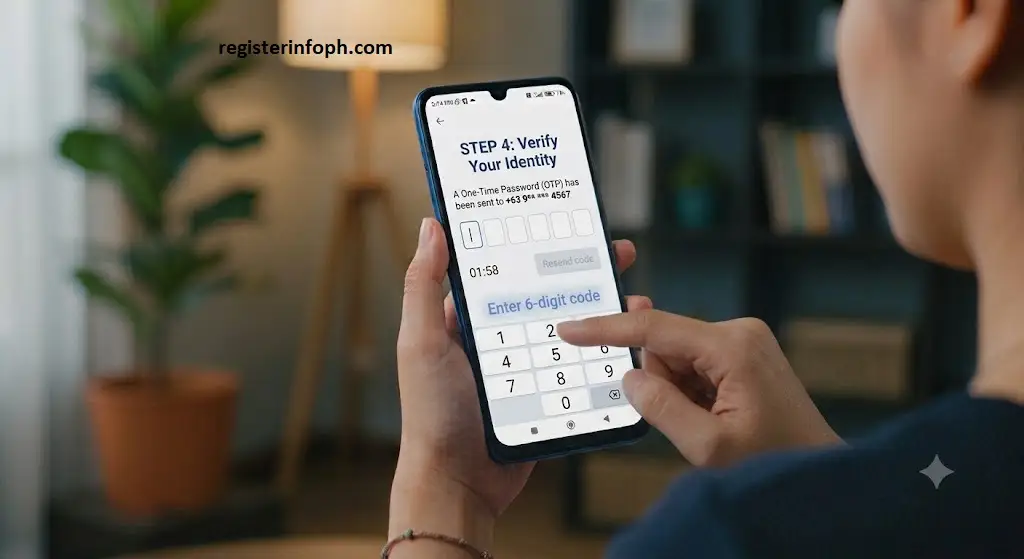
Step 4: Verify Your Identity
For security purposes, Globe will usually send a One-Time Password (OTP) to your registered mobile number.
Enter the verification code within the required time.
If the code expires, you can request a new OTP.
Step 5: Complete Your Profile
Depending on your account type, you may be asked to provide basic information to finish setting up your profile.
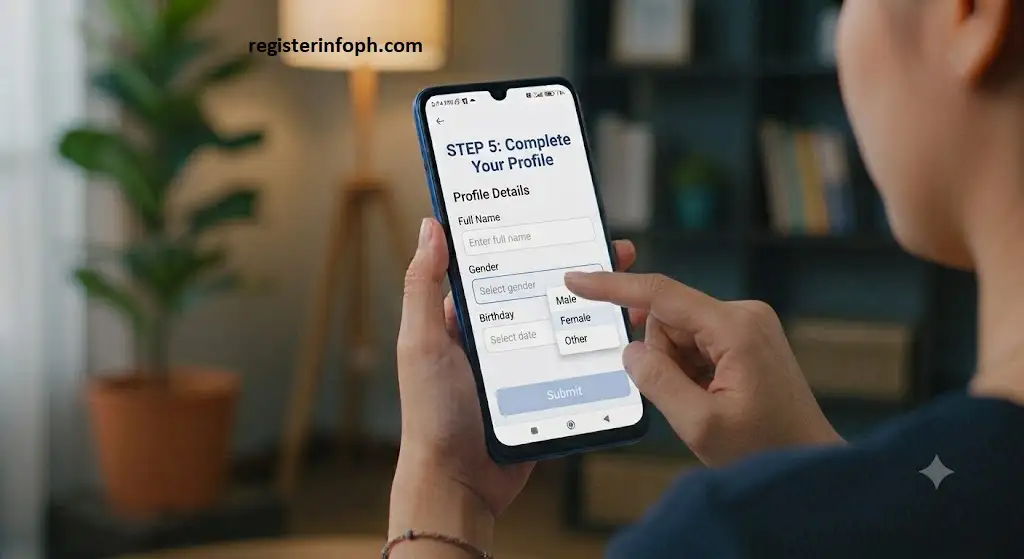
Once completed, your GlobeOne account will be ready to use.
How to Log In to GlobeOne
Returning users can sign in within seconds.
Steps to Log In
- Open the GlobeOne App.
- Enter your registered mobile number or email.
- Complete any required verification.
- Access your dashboard.
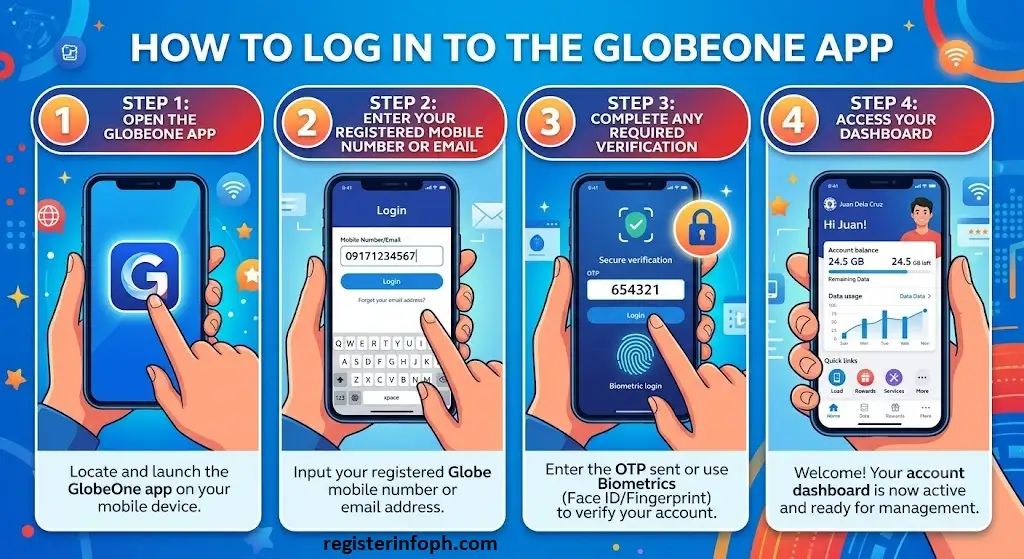
After logging in, you’ll immediately see your account summary, available balances, rewards, and other services linked to your account.
Who Can Use GlobeOne?
One of GlobeOne’s biggest strengths is that it supports multiple Globe services under a single account.
You can use GlobeOne if you have:
- Globe Prepaid
- Globe Postpaid
- TM SIM
- GFiber
- Globe At Home accounts (where supported)
If you manage several Globe or TM numbers for yourself or your family, you can add multiple accounts and switch between them without logging in and out repeatedly.
Key Features of the GlobeOne App
The GlobeOne App includes a wide range of features that help customers manage their services more efficiently.
Check Load and Data Balance
One of the most frequently used features is the ability to check your remaining prepaid load and mobile data balance in real time.
Instead of dialing USSD codes, GlobeOne displays your available balance immediately after signing in. You can also see your remaining call minutes, SMS allocation, and promo validity when applicable.
This helps users monitor their usage and avoid unexpected interruptions.
Buy Load and Register Promos
GlobeOne makes purchasing prepaid load and mobile promos much easier.
Within the app, eligible users can:
- Buy prepaid load
- Register for Globe promos
- Register for TM promos
- Purchase data packages
- Subscribe to call and text bundles
- Renew eligible subscriptions
The app also highlights featured and recommended offers based on your account.
Pay Globe Bills
Postpaid customers can conveniently manage their monthly bills using GlobeOne.
Inside the app, users can:
- View outstanding balances
- Check billing details
- Review previous bills
- Pay securely using supported payment methods
- Track payment history
Digital payments help reduce the need to visit payment centers and make it easier to keep accounts up to date.
Redeem Globe Rewards
Globe Rewards members can use GlobeOne to monitor and redeem their available rewards points.
Depending on current offers, eligible users may redeem points for:
- Mobile promos
- Digital vouchers
- Partner rewards
- Lifestyle offers
- Exclusive Globe promotions
The available rewards may change over time based on Globe’s latest campaigns.
Manage Multiple Accounts
Many households have several Globe numbers, TM SIMs, or GFiber subscriptions.
Instead of maintaining separate logins, GlobeOne allows users to add multiple eligible accounts to one profile.
This makes it easier to:
- Switch between accounts
- Monitor balances
- Buy promos
- Pay bills
- Manage family services
GFiber Account Management
GFiber subscribers can also use GlobeOne to manage their home internet account.
Depending on your subscription, you may be able to:
- View account information
- Monitor billing
- Check your subscription
- Track service status
- Access support options
Having both mobile and home internet services in one application creates a more convenient customer experience.
What Can You Do with the GlobeOne App?
Here’s a quick overview of the services available through GlobeOne.
| Service | Available |
|---|---|
| Check Load | ✅ |
| Check Data Balance | ✅ |
| Buy Load | ✅ |
| Register Promos | ✅ |
| Pay Bills | ✅ |
| Redeem Rewards | ✅ |
| Manage Multiple Accounts | ✅ |
| View Transactions | ✅ |
| GFiber Management | ✅ |
| Customer Support | ✅ |
Is GlobeOne Safe to Use?
Yes. GlobeOne is the official mobile application developed by Globe Telecom.
To help protect customer accounts, the app uses account verification methods such as one-time passwords (OTPs) during sign-in or when adding eligible accounts. Users are encouraged to keep their app updated, use a strong password if applicable, and never share verification codes with anyone.
For the best security, download GlobeOne only from the official Google Play Store or Apple App Store and avoid installing unofficial versions from third-party websites.
GlobeOne App System Requirements
Before installing the app, make sure your device meets the basic requirements.
| Requirement | Details |
|---|---|
| Internet Connection | Required |
| Android Device | Supported version available on Google Play |
| iPhone | Supported version available on the App Store |
| Storage Space | Sufficient free storage required |
| Mobile Number | Globe, TM, or other supported account for registration |
Keeping your operating system and the GlobeOne App updated helps ensure access to the latest features, performance improvements, and security updates.
How to Add Your Globe Number
Adding your Globe mobile number allows GlobeOne to display your account information.
Steps
- Log in to GlobeOne.
- Select Add Account if your number is not already linked.
- Enter your Globe mobile number.
- Wait for the OTP verification.
- Enter the verification code.
- Your number will appear on your dashboard.
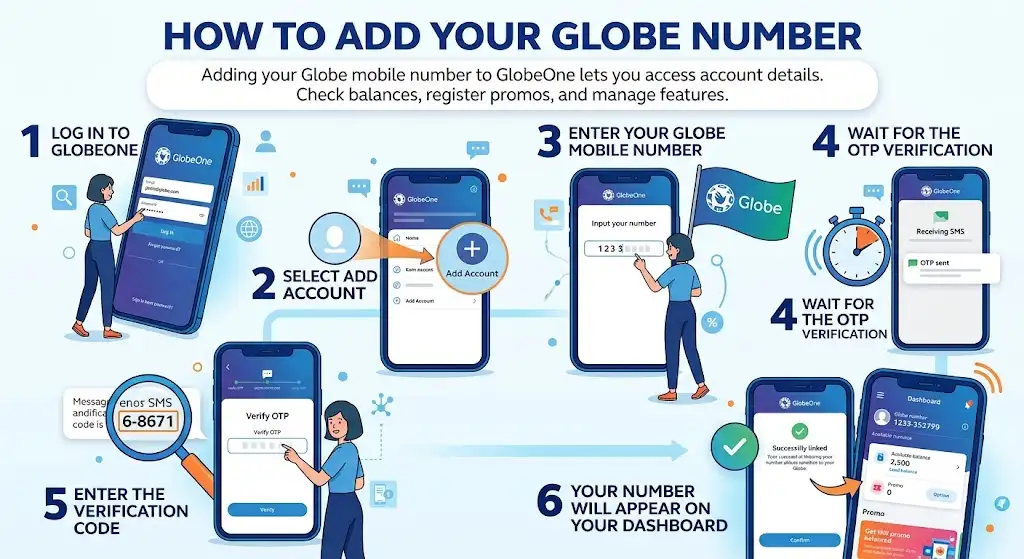
After linking your number, you can check balances, register promos, and access other account features.
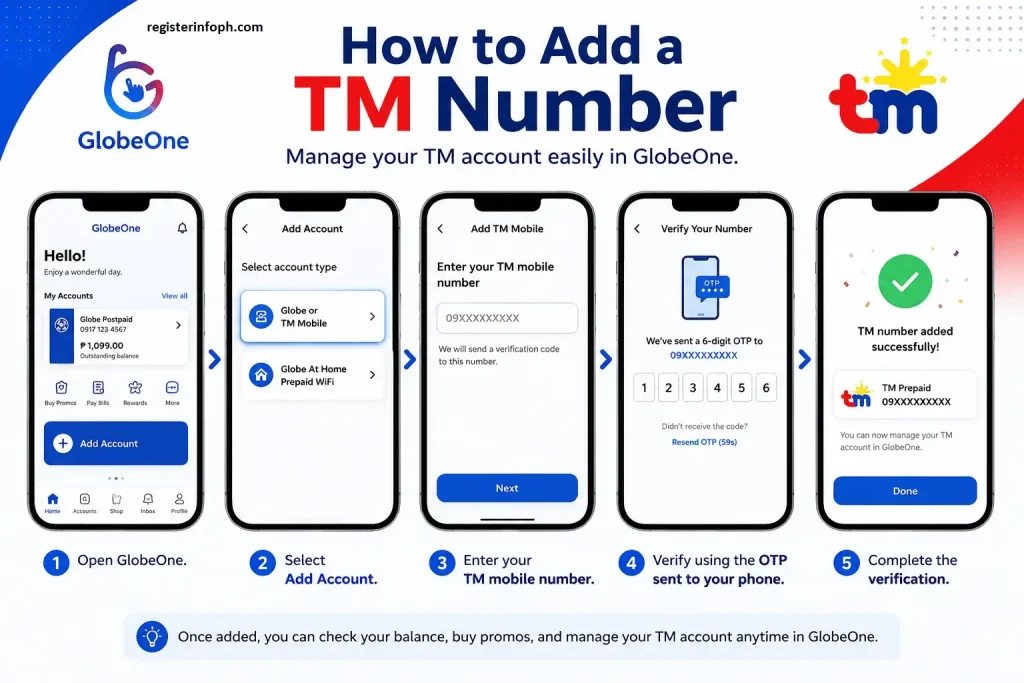
How to Add a TM Number
TM subscribers can also manage their accounts through GlobeOne.
The process is similar:
- Open GlobeOne.
- Select Add Account.
- Enter your TM mobile number.
- Verify using the OTP sent to your phone.
- Complete the verification.
Your TM account will then be available alongside any other linked accounts.
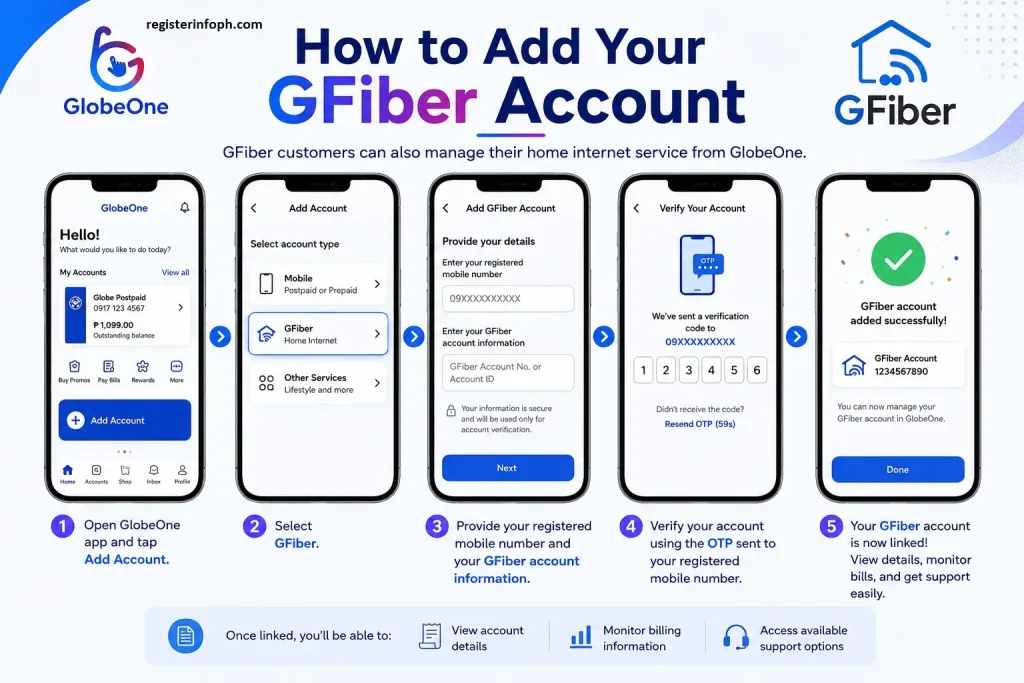
How to Add Your GFiber Account
GFiber customers can also manage their home internet service from GlobeOne.
Depending on your account, you may need to provide:
- Your registered mobile number
- Your account information
- Verification through OTP or other supported methods
Once linked, you’ll be able to view account details, monitor billing information, and access available support options.
Understanding the GlobeOne Dashboard
After signing in, the GlobeOne dashboard becomes your main control center.
Depending on your account type, you may see:
- Remaining prepaid load
- Data balance
- Active promos
- Rewards points
- Billing information
- Multiple linked accounts
- GFiber account summary
- Recommended offers
- Notifications
The dashboard is designed to give you quick access to the services you use most often.
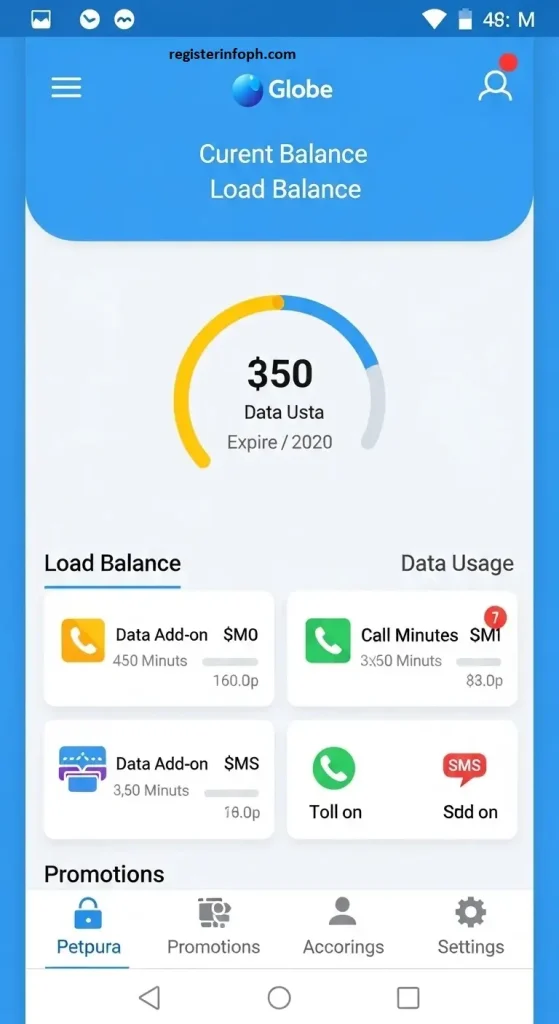
How to Check Your Data Balance
One of the main reasons customers use GlobeOne is to monitor their remaining mobile data.
To check your balance:
- Open GlobeOne.
- Log in to your account.
- Select your mobile number if multiple accounts are linked.
- View your remaining mobile data on the dashboard.
Depending on your subscription, you may also see:
- Remaining call minutes
- Remaining SMS allocation
- Promo expiration date
- Bonus data (if applicable)
Monitoring your usage regularly helps you avoid running out of data unexpectedly.
How to Check Your Load Balance
Prepaid users can also check their remaining load without dialing service codes.
Simply:
- Open GlobeOne.
- Log in.
- Select your prepaid number.
- View your available load balance.
The balance is displayed together with other important account information, making it easier to manage your prepaid account.
How to Buy Load Using GlobeOne
Buying load through GlobeOne is convenient because everything happens within the app.
General Steps
- Open GlobeOne.
- Select the account you want to top up.
- Tap the option to buy load.
- Choose the desired load amount.
- Select an available payment method.
- Review your purchase.
- Confirm the transaction.
After successful payment, your load should be reflected in your account.
Related Guide : Globe Balance Inquiry: Best & Easy Ways to Check Balance (2026)
How to Register for Promos
Instead of remembering dialing codes, GlobeOne lets users browse available offers.
Generally, the process is:
- Open GlobeOne.
- Select your mobile account.
- Browse available promos.
- Choose the promo that matches your needs.
- Confirm the purchase.
Available offers may include:
- Data promos
- Call and text bundles
- Combo packages
- Limited-time promotions
The exact promos shown depend on your account type and Globe’s current offerings.
Tips for Using GlobeOne Efficiently
To get the most from the app:
- Keep the app updated.
- Enable app notifications for important account alerts.
- Link all your eligible Globe, TM, and GFiber accounts.
- Check your remaining data before purchasing another promo.
- Review available Globe Rewards regularly.
- Never share OTPs with anyone.
- Use a secure internet connection when making payments.
Following these simple practices helps ensure a smoother and more secure experience
Pay Globe Bills Using the GlobeOne App
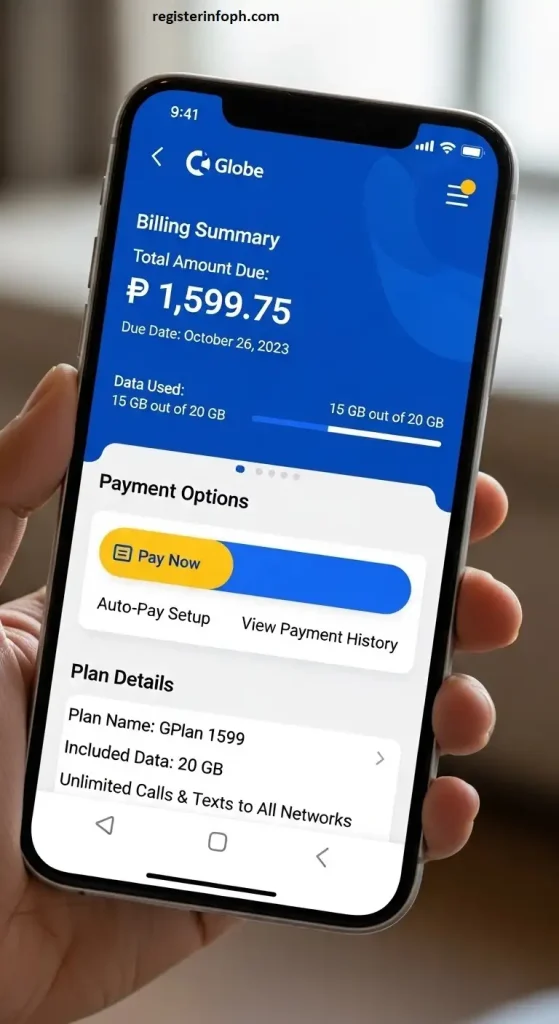
One of the most useful features of the GlobeOne App is the ability to pay your Globe Postpaid and eligible GFiber bills online. Instead of visiting a payment center, you can settle your bills directly through the app using supported payment methods.
Note: Available payment methods may vary depending on your account type and location.
How to Pay Your Globe Bill
Follow these general steps:
- Open the GlobeOne App and sign in to your account.
- Select your Postpaid or GFiber account.
- Tap Pay Bill.
- Review your outstanding balance and billing details.
- Choose your preferred payment method.
- Confirm the payment.
- Wait for the confirmation message or receipt.
After a successful payment, your transaction will appear in your payment history. Processing times may vary depending on the payment method used.
How to View Your Billing History
GlobeOne also allows eligible users to review previous billing information.
You can typically:
- View your current bill
- Check previous billing statements
- Monitor your payment history
- Review your due dates
- Track successful payments
Keeping track of your billing history can help you monitor your monthly expenses and verify completed transactions.
How to Redeem Globe Rewards
The Globe Rewards program lets eligible customers earn and redeem rewards through the GlobeOne App. Available rewards may change throughout the year, depending on Globe’s latest promotions and partner offers.
How to Redeem Rewards
- Open GlobeOne.
- Sign in to your account.
- Go to the Rewards section.
- View your available rewards points.
- Browse the list of available rewards.
- Select the reward you want.
- Confirm the redemption.
Depending on current offers, rewards may include:
- Mobile data promos
- Call and text bundles
- Dining vouchers
- Shopping discounts
- Lifestyle rewards
- Entertainment offers
- Partner merchant promotions
Always review the reward’s terms and validity before confirming your redemption.
Managing Multiple Accounts
Many users manage more than one Globe service, such as a personal prepaid SIM, a TM number for family, and a GFiber subscription at home.
The GlobeOne App allows eligible users to link multiple accounts under a single profile, making it easier to switch between them without signing in repeatedly.
Benefits include:
- Monitor multiple balances
- Buy promos for different numbers
- Pay bills for several accounts
- View separate account information
- Manage family accounts more conveniently
The exact number of accounts you can link may depend on Globe’s current policies.
Notifications and Account Alerts
GlobeOne keeps users informed through in-app notifications.
You may receive alerts about:
- Promo expiration
- Low prepaid balance
- Bill due dates
- Successful payments
- Reward updates
- Exclusive offers
- App updates
- Service announcements
Enabling notifications helps you stay updated and avoid missing important account activities.
Customer Support Through GlobeOne
If you need assistance, GlobeOne provides access to support options directly within the app.
Depending on the available services, you may be able to:
- Access the Help Center
- Browse frequently asked questions
- Report certain account concerns
- View service updates
- Find support articles
- Contact Globe through available customer service channels
For account-specific concerns, always use the official Globe support channels available within the app or on Globe’s website.
Common GlobeOne App Problems and Solutions
Although GlobeOne is generally reliable, you may occasionally experience issues. Here are some common problems and possible solutions.
1. Unable to Receive OTP
Possible causes:
- Weak mobile signal
- Incorrect mobile number
- Delayed network delivery
Try the following:
- Wait a few minutes and request a new OTP.
- Ensure your mobile number is entered correctly.
- Move to an area with better network coverage.
- Restart your device if necessary.
2. Login Problems
If you can’t sign in:
- Check your internet connection.
- Verify your registered mobile number or email.
- Update the app to the latest version.
- Follow the account recovery process if needed.
3. App Crashes or Freezes
Try these troubleshooting steps:
- Restart the app.
- Update GlobeOne to the latest version.
- Restart your phone.
- Ensure your device has enough available storage.
- Update your phone’s operating system if applicable.
4. Balance Not Updating
If your balance or promo information doesn’t refresh:
- Pull down to refresh the dashboard.
- Check your internet connection.
- Close and reopen the app.
- Allow some time for recent transactions to process.
5. Unable to Buy a Promo
If a promo purchase fails:
- Verify that you have sufficient balance or a valid payment method.
- Confirm that the promo is available for your account.
- Try again after a few minutes if the service is temporarily unavailable.
GlobeOne App Tips for Better Security
To help keep your account secure:
Following these best practices helps protect your personal information and Globe account.
Official Resources
For the most accurate and up-to-date information about the GlobeOne App, visit these official Globe resources:
- GlobeOne Help Center
- Globe Telecom Official Website
- GlobeOne on Google Play
- GlobeOne on the Apple App Store
Conclusion
The GlobeOne App is the official digital platform that makes managing Globe services simpler and more convenient. Whether you’re using a Globe Prepaid SIM, TM number, Globe Postpaid plan, or GFiber connection, the app brings essential account management tools together in one place.
From checking your load and mobile data balance to buying promos, paying bills, redeeming rewards, and managing multiple accounts, GlobeOne helps reduce the need to visit physical stores or use multiple service channels. With regular updates and support for a wide range of Globe services, it has become an essential app for many Globe customers.
For the best experience, always download GlobeOne from the official app stores, keep the app updated, and use only Globe’s official support channels whenever you need assistance.